The Main Interface
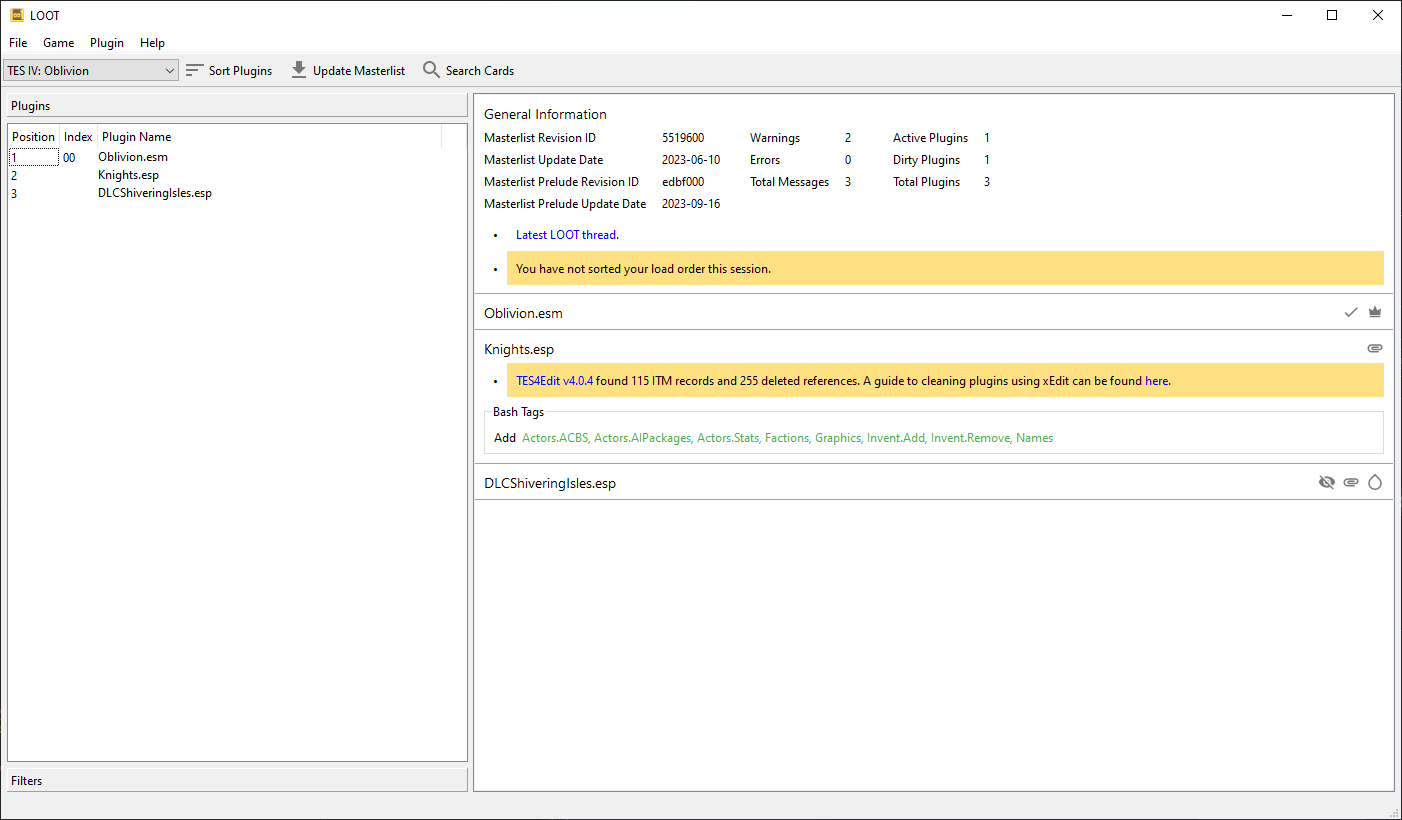
The Toolbar
The toolbar provides access to LOOT’s main features: selecting a game, sorting plugins and updating the masterlist. These features get disabled while the metadata editor is open, so if you’re trying to use an option that is faded out, first close the editor.
Masterlist Update & Sorting
The masterlist update process updates the active game’s masterlist to the latest revision at the location given by the game’s masterlist repository settings.
By default, sorting first updates the masterlist. LOOT then calculates a load order for your plugins, using their internal data and any metadata they may have. If a cyclic interaction is detected (eg. A depends on B depends on A), then sorting will fail.
Once LOOT has calculated a load order, it is compared with the current load order. If the current and calculated load orders are identical, LOOT will inform you that no changes were made via a status bar notification. If the calculated load order contains changes, the plugin cards are sorted into that order and the masterlist update and sorting buttons are replaced with Apply Sorted Load Order and Discard Sorted Load Order buttons, which apply and discard the calculated load order respectively. Changing games is disabled until the calculated load order is applied or discarded.
LOOT is able to sort plugins ghosted by Wrye Bash, and can extract Bash Tags and version numbers from plugin descriptions. Provided that they have the Filter Bash Tag present in their description, LOOT can recognise filter patches and so avoid displaying unnecessary error messages for any of their masters that may be missing.
Any errors encountered during sorting or masterlist update will be displayed on the “General Information” card.
Load Order Backups
In addition to the “Back Up Load Order” Game menu action, LOOT automatically backs up the current load order before applying a sorted load order, fixing an ambiguous load order or restoring a load order backup. Only the ten most recent automatic backups are retained. LOOT never automatically deletes manual backups.
Backups are stored as JSON files in the LOOT’s data folder for the current game. The files use the naming scheme loadorder.<creation timestamp>.json.
Plugin Cards & Sidebar Items
Each plugin is displayed on its own “card”, which displays all the information LOOT has for that plugin, and provides access to plugin-specific functionality, including editing its metadata. Each plugin also has an item in the sidebar’s Plugins section. The sidebar item contains the plugin’s listed position, name and an  icon for plugins that have user metadata. It also displays the plugin’s in-game load order index if the plugin is active, while light plugins have their light plugin index displayed. Clicking on a plugin’s sidebar item will select it, so that the Plugin menu options operate on it. Double-clicking a plugin’s sidebar item will jump to its card.
The plugin card’s header holds the following information, some of which is only displayed if applicable:
The plugin name.
The plugin’s version number, extracted from its description field.
The plugin’s CRC, which can be used to uniquely identify it. CRCs are only displayed after they have been calculated during overlap filtering or sorting, except the the CRC of the game’s main master plugin, which is never displayed.
The “Active Plugin”
 icon.
icon.The “Master Plugin”
 icon.
icon.The “Blueprint Master Plugin”
 icon.
icon.The “Light Plugin”
 icon or “Small Plugin”
  icon.
icon.The “Medium Plugin”
 icon.
icon.The “Empty Plugin”
 icon.
icon.The “Loads Archive”
 icon.
icon.The “Verified clean”
 icon.
icon.The “Has User Metadata”
icon.The “Has Hidden Messages”
 icon.
icon.
Messages, Bash Tag suggestions and plugin sources are displayed below the plugin card’s header.
LOOT’s plugin messages are a valuable resource, as they provide information that might not be obvious. It is important for a stable, healthy game that you act on any messages that require action. If you think a message suggests an unnecessary action, report it to an official LOOT thread. If you encounter a message that is non-conditional, ie. it suggests an action but is still displayed on subsequent runs of LOOT after the action has been carried out, also report it to an official LOOT thread, so that it can be made conditional.
You can hide individual messages by right-clicking them and selecting the “Hide message” context menu action. A card with hidden messages (whether hidden individually or using filters) will display the “Has Hidden Messages” icon, and they can be unhidden by right-clicking the card (anywhere outside its list of messages) and selecting the relevant context menu action. The selected plugin’s hidden messages can also be unhidden from the Plugin menu. The Game menu contains actions to unhide individually-hidden general messages, and to unhide all individually-hidden messages.
You generally don’t need to do anything with Bash Tag suggestions, so they’re hidden by default. If you’re using Wrye Bash it will automatically apply LOOT’s suggestions, and if you’re not using Wrye Bash then this information doesn’t apply.
Plugin sources are obtained from location metadata, and don’t necessarily reflect where you downloaded the plugin from. If multiple mods provide a plugin with the same filename, that plugin may be listed with links to where each of those mods are hosted.
Filters
Clicking the Filters section header in the sidebar will replace the sidebar’s plugin list with a list of filter toggles that can be applied to hide various combinations of plugins and other content. The available filter toggles are:
- Hide version numbers
Hides the version numbers displayed in blue next to those plugins that provide them.
- Hide CRCs
Hides the CRCs displayed in orange next to those plugins that provide them.
- Hide Bash Tags
Hides all Bash Tag suggestions.
- Hide Sources
Hides all plugin sources.
- Hide notes
Hides all messages that have the Note: prefix, or the equivalent text for the language selected in LOOT’s settings.
- Hide official plugins’ cleaning messages
Hides all plugin cleaning messages for the current game’s official plugins.
- Hide all plugin messages
Hides all plugin messages.
- Hide inactive plugins
Hides all plugins that are inactive.
- Hide messageless plugins
Hides all plugins that have no visible messages.
- Show only new messages
Hides all messages that existed the last time LOOT ran for the current game, before its content was last refreshed, or before its masterlist was last updated while it was the current game.
- Show only empty plugins
Hides all plugins that contain more than their header record. Empty plugins can be used to load assets from BSA or BA2 files (depending on the game).
- Show only plugins with load after metadata
Hides all plugins that do not have load after metadata. This is checked after conditions are evaluated, so will hide plugins that have load after metadata that is irrelevant for your game install.
- Show only plugins with load after user metadata
Hides all plugins that do not have load after user metadata. This is checked before conditions are evaluated, so will also show plugins with user metadata that is irrevelant for your game install.
- Show only plugins without load order metadata
This is checked after conditions are evaluated, so will hide plugins that have load after metadata that is irrelevant for your game install.
- Show only warnings and errors
Combines the Bash Tags, sources, notes and messageless plugins filters. Enabling it enables those other filters, and disabling any of those other filters will also disable it.
The filter toggles have their states saved on quitting LOOT, and they are restored when LOOT is next launched. There are also three other filters in the sidebar tab:
- Show only overlapping plugins for
This filters the plugin cards displayed so that only plugins which modify the same game data records with this plugin will be visible. If this plugin loads an archive, other plugins that load archives which contain resources with the same file paths are also displayed. Sorting with the overlap filter active will first deactivate it.
- Show only plugins in group
This filters the plugin cards displayed so that only plugins in the selected group will be visible.
- Show only plugins with cards that contain
This hides any plugins that don’t have the filter input value present in any of the text on their cards.
The “Use regular expression” checkbox controls whether the input value is interpreted as text or as a regular expression. If ticked and the input value is not a valid regular expression, a tooltip detailing the issue will be displayed and the card content filter will be ignored.