Editing Plugin Groups
What Are Plugin Groups?
LOOT assigns each plugin to one plugin group, with plugins belonging to the
default group by default. Each group has a name and a list of zero or more
other groups it loads after. In this way, it’s possible to concisely load groups
of plugins after other groups of plugins.
Group load order is transitive, i.e. given three groups A, B and C, if C loads after B and B loads after A, then plugins in group C will load after plugins in group A even if no plugins in group B are installed.
The Groups Editor
A group must be defined before plugins can belong to it, and defining and editing groups is done in the Groups Editor, which can be accessed through the Game menu.
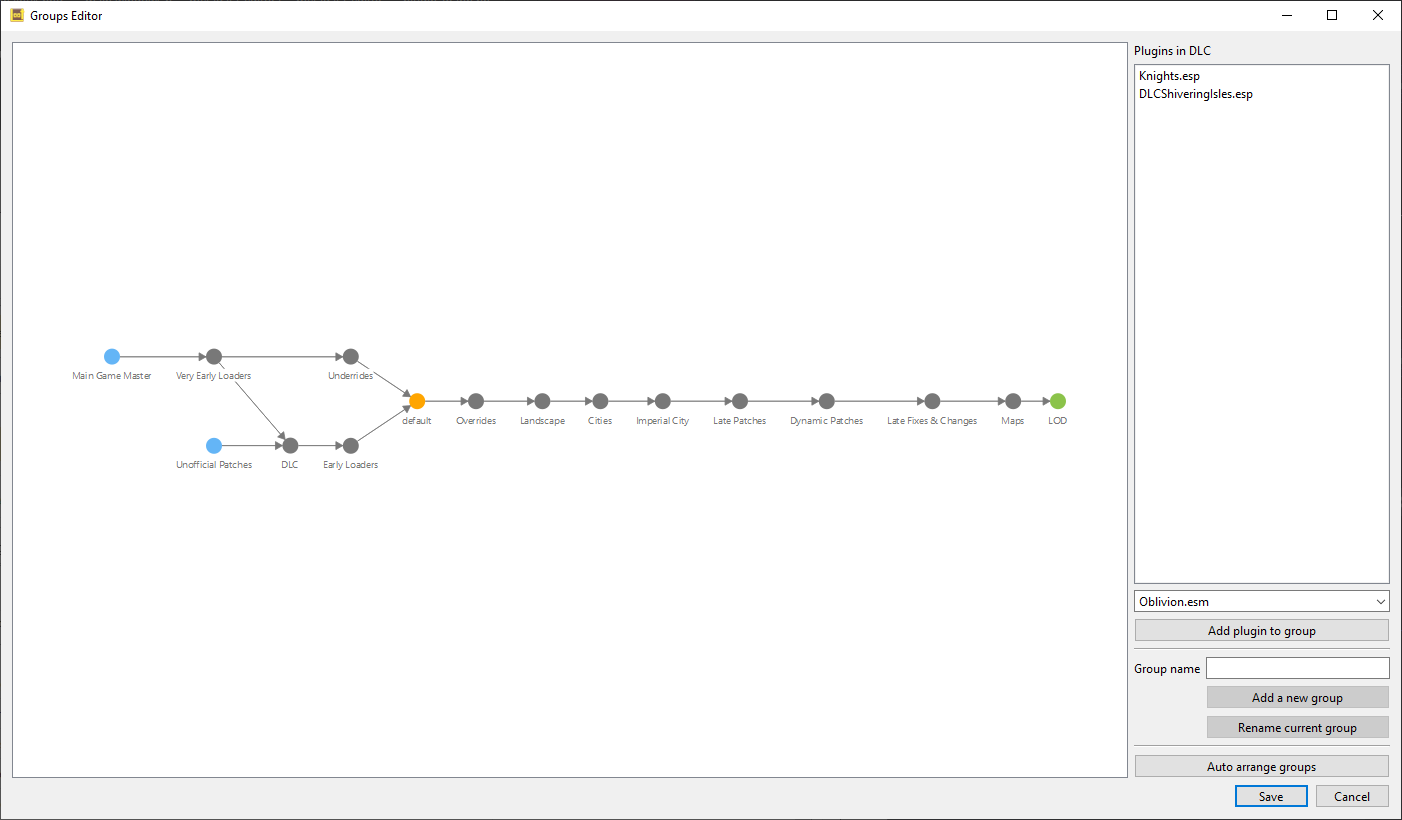
The groups editor consists of an interactive graph displaying all defined groups and their load after metadata, and a sidebar containing:
a list of plugins in the currently-selected group
a list of plugins that are other groups, and a dropdown combo box listing plugins that are in other groups. The list can be used to select one or more plugins to add to the currently-selected group, while the dropdown is an alternative way to find and select one plugin at a time to add to the currently-selected group
an input for creating a new group or renaming the currently-selected group
a button to automatically arrange the layout of the groups in the graph.
In the groups graph:
Groups are displayed as circular nodes in the graph, labelled with their names.
Groups that load after no other groups are displayed in blue.
Groups that no other groups load after are displayed in green.
The
defaultgroup is displayed in orange.
Load after metadata is displayed as lines (edges/vertices) between nodes, pointing from the earlier group to the later group.
Metadata defined in the masterlist is greyed out, while user-defined metadata is not.
If any group definitions reference another group that does not exist, the groups editor will create the missing group as user metadata. This is to help when there is user metadata that says the user-defined group B must load after the masterlist-defined group A, but then group A is removed in a masterlist update. In that case, just open up the groups editor and link group A back into the graph as it was before.
New load after metadata can be added by double-clicking on one group node and dragging a line from it to any other group nodes.
Clicking on a group will cause any installed plugins in that group to be listed in the sidebar. Right-clicking the list will display a context menu that contains an action to copy the listed plugin names to the clipboard.
Right-clicking a load after metadata line will remove that load after metadata, and right-clicking a group will remove it. Masterlist metadata cannot be removed. A group cannot be removed if any installed plugins belong to it.
The graph can be zoomed in and out of using your mouse’s scroll wheel. Left-clicking and dragging an empty space will move the whole graph, while left-clicking and dragging a node will move it.
Rules For Using Groups
The groups editor enforces a few rules:
A group cannot load after itself.
A group cannot load after another group if the other group does not exist.
It’s not possible to delete groups that are defined in the masterlist.
It’s not possible to remove ‘load after’ entries from a group if they were defined in the masterlist.
It’s possible to define group relationships and memberships that would produce
a cyclic load order. A simple example is where group B loads after group
A, and group A loads after group B.
A more complex example involving other types of metadata is where
A.espis in theearlygroupB.espis in themidgroupC.espis in thelategroupA.esphasC.espas a masterThe
lategroup loads after themidgroup, which loads after theearlygroup.
A load order must be linear, so where group metadata is involved in a cycle,
LOOT will break the cycle by ignoring a plugin’s group membership: in the
example above, C.esp’s group membership would be ignored.
While not a strict rule, it’s best to avoid defining cyclic group relationships or assigning plugins to groups that would introduce cycles, to avoid surprising sorting behaviour due to LOOT breaking those cycles.